Run the aliases, created during the development setup, to initialise the ESP-IDF and ESP-Matter environments in the current terminal session:
get_idf
get_matter
Step 2: Create a New Project
ESP-IDF provides the idf.py command-line tool as a front-end for managing project builds, deployment, debugging, and other tasks, simplifying the workflow significantly. It integrates several essential tools, including CMake for project configuration, Ninja for building, and esptool.py for flashing the target device.
idf.py create-project <project name>
cd <project name>
Step 3: Set Target Device
The following command sets the target device:
idf.py set-target <chip_name>
For example, to set the target device to ESP32-H2:
idf.py set-target esp32h2
It creates a new sdkconfig file in the root directory of the project. This configuration file can be modified via idf.py menuconfig.
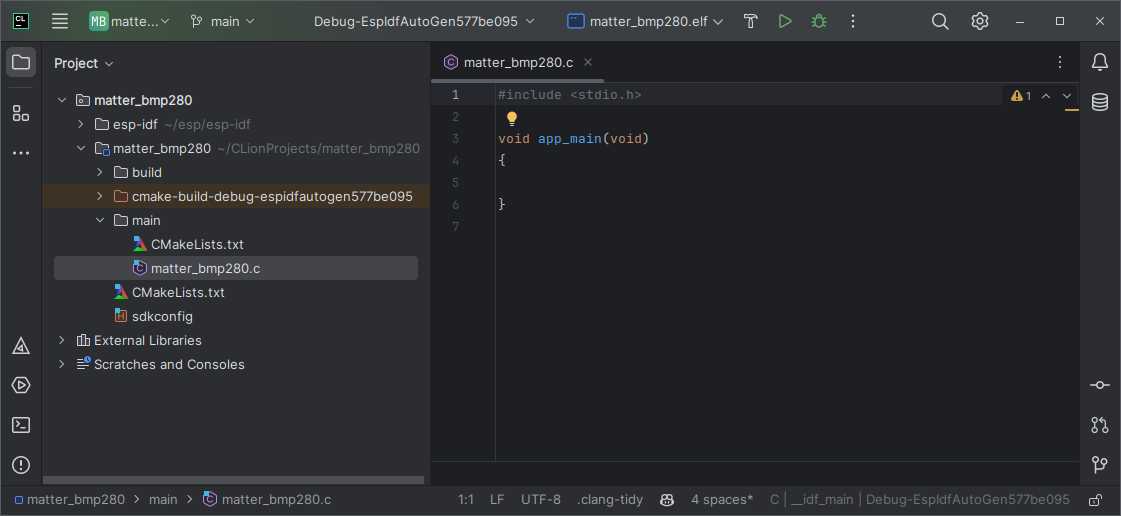
Step 4: Open the Project in CLion IDE
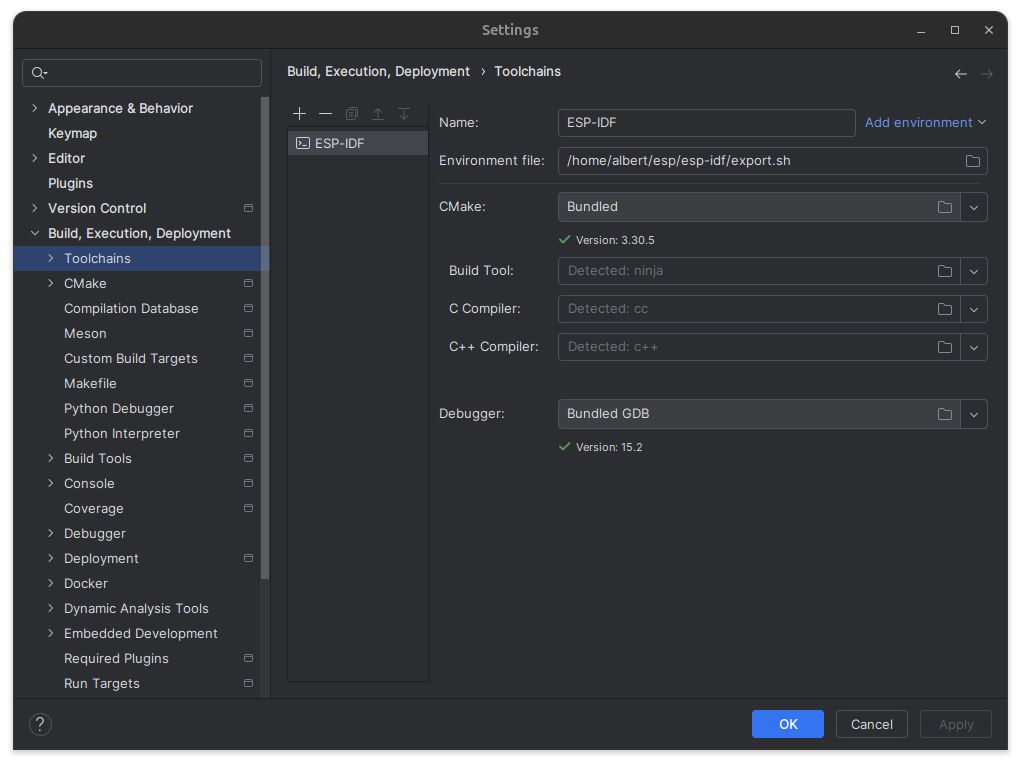
Create a toolchain named ESP-IDF with the environment file set to esp-idf/script.sh:
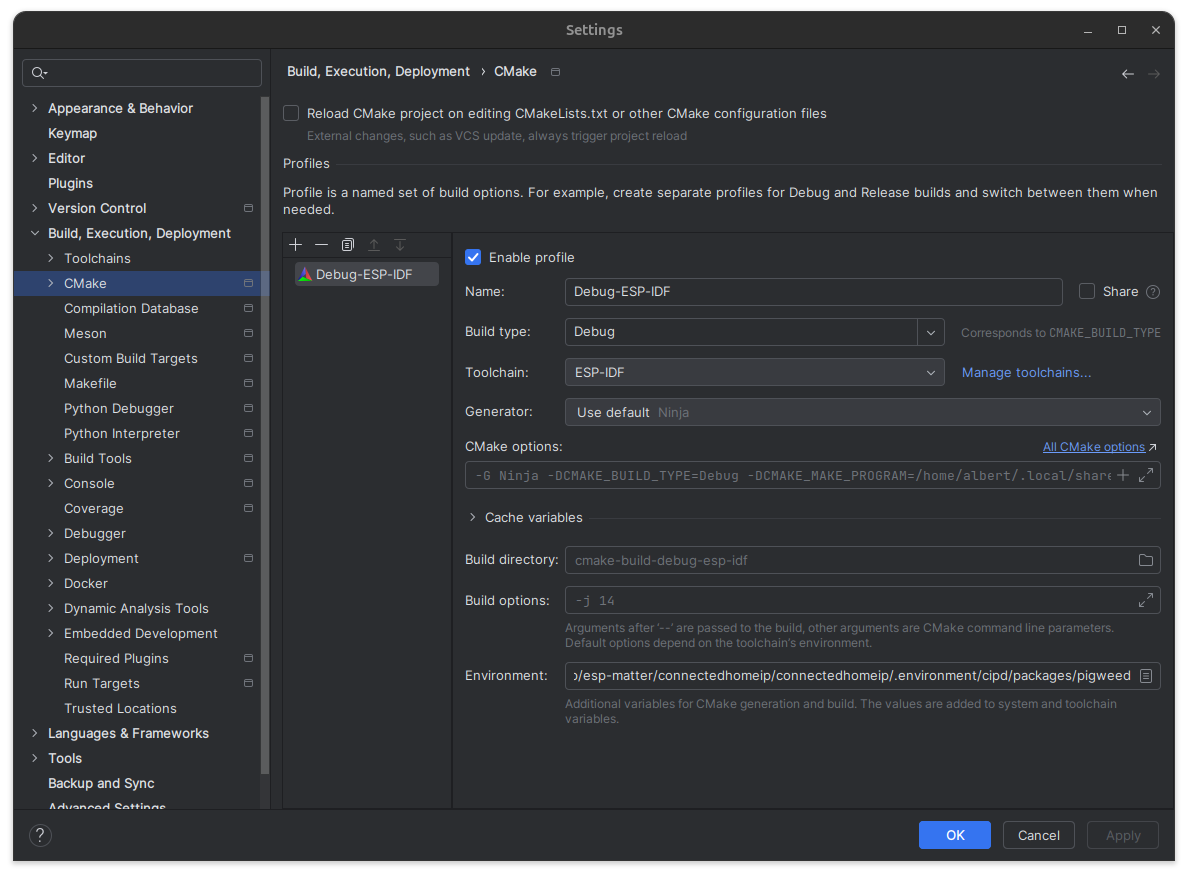
Set up a CMake profile with the following Matter environmental variables:
Update the CMakeLists.txt file to include the Matter SDK:
# For more information about build system see
# https://docs.espressif.com/projects/esp-idf/en/latest/api-guides/build-system.html
# The following five lines of boilerplate have to be in your project's
# CMakeLists in this exact order for cmake to work correctly
cmake_minimum_required(VERSION 3.16)
# Set an error message if ESP_MATTER_PATH is not set
if(NOT DEFINED ENV{ESP_MATTER_PATH})
message(FATAL_ERROR "Please set ESP_MATTER_PATH to the path of esp-matter repo")
endif(NOT DEFINED ENV{ESP_MATTER_PATH})
# The set() commands should be placed after the cmake_minimum() line but before the include() line.
set(PROJECT_VER "1.0")
set(PROJECT_VER_NUMBER 1)
set(ESP_MATTER_PATH $ENV{ESP_MATTER_PATH})
set(MATTER_SDK_PATH ${ESP_MATTER_PATH}/connectedhomeip/connectedhomeip)
set(ENV{PATH} "$ENV{PATH}:${ESP_MATTER_PATH}/connectedhomeip/connectedhomeip/.environment/cipd/packages/pigweed")
# Pulls in the rest of the CMake functionality to configure the project, discover all the components, etc.
include($ENV{IDF_PATH}/tools/cmake/project.cmake)
# Include common component dependencies and configurations from ESP-Matter examples
include(${ESP_MATTER_PATH}/examples/common/cmake_common/components_include.cmake)
# Optional list of additional directories to search for components.
set(EXTRA_COMPONENT_DIRS
"${MATTER_SDK_PATH}/config/esp32/components"
"${ESP_MATTER_PATH}/components"
${extra_components_dirs_append})
# Declare the project
project(project-example)
# Set the C++ standard to C++17
idf_build_set_property(CXX_COMPILE_OPTIONS "-std=gnu++17;-Os;-DCHIP_HAVE_CONFIG_H;-Wno-overloaded-virtual" APPEND)
idf_build_set_property(C_COMPILE_OPTIONS "-Os" APPEND)
# For RISCV chips, project_include.cmake sets -Wno-format, but does not clear various
# flags that depend on -Wformat
idf_build_set_property(COMPILE_OPTIONS "-Wno-format-nonliteral;-Wno-format-security" APPEND)
# Enable colored output in ninja builds
add_compile_options(-fdiagnostics-color=always -Wno-write-strings)
Step 7: Build the Project
idf.py build
Step 8: Determine Serial Port
Connect the ESP32 board to the computer and check under which serial port the board is visible. Serial ports have the following naming patterns: /dev/tty.
Step 9: Flash Project to Target
idf.py -p <PORT> flash
Step 10: Launch IDF Monitor
Use the monitor application and exit using CTRL+]: