ESP Basic Thread Border Router
Overview
The ESP Basic Thread Border Router example from ESP_IDF demonstrates how to build firmware for a basic Thread Border Router device running on Espressif's hardware.
The firmware configures the OpenThread platform using default radio, host, and port settings. Optionally, it enables external coexistence and sets up mDNS (with the hostname "esp-ot-br"), along with OTA and web server support if enabled. Finally, it launches the Border Router.
Build and Run
This section demonstrates how to build and run the ESP Basic Thread Border Router example.
Prerequisites:
ESP-IDF development environment is set up.
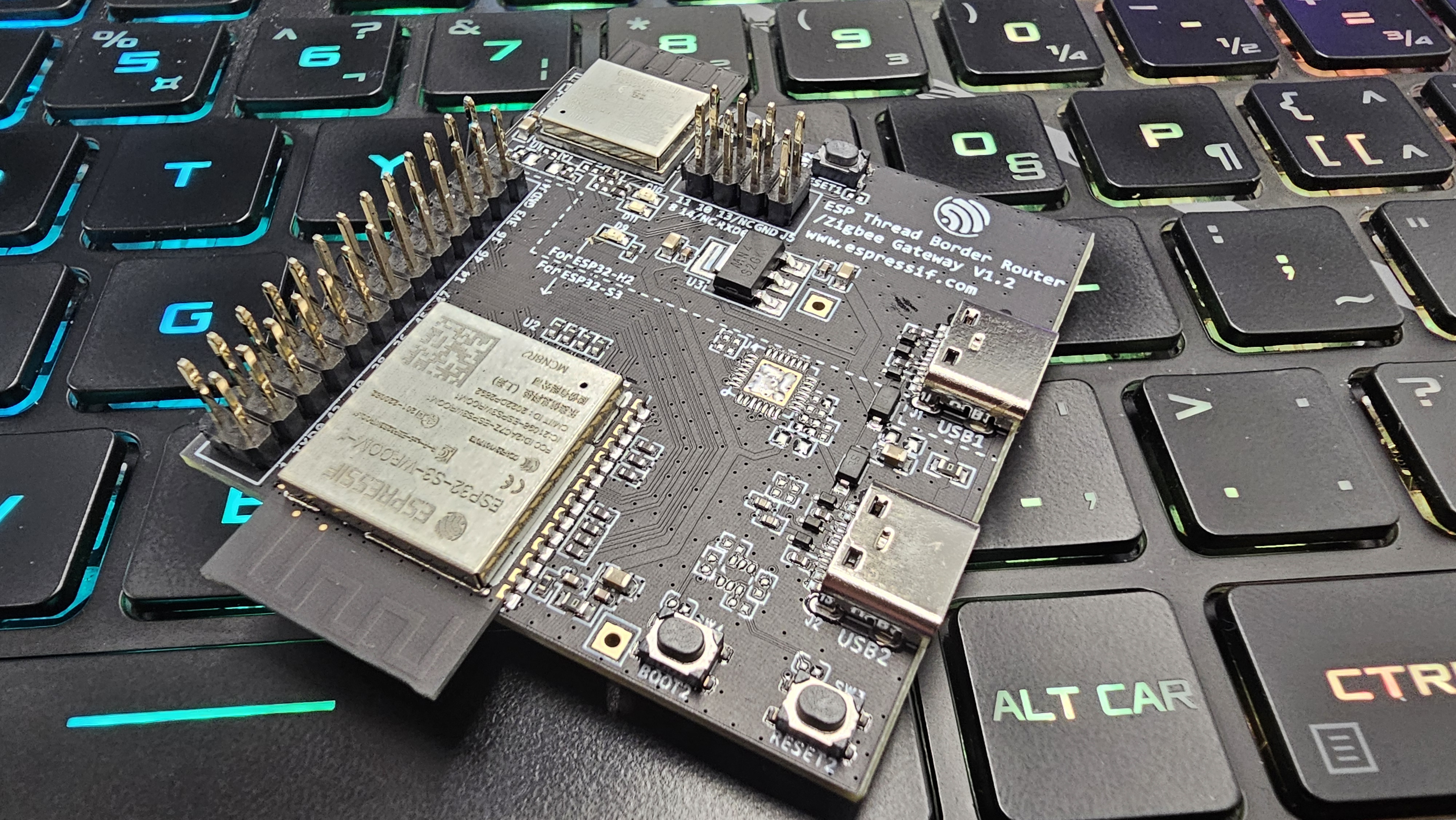
ESP THREAD BR-ZIGBEE GW board
Step 1: Build the RCP Image
The firmware does not need to be manually flashed onto the device. It will be integrated into the Border Router firmware and automatically installed onto the ESP32-H2 chip during the first boot-up. idf.py menuconfig can be used for customized settings.
Step 2: Clone Espressif Thread Border Router SDK
This project uses Espressif Thread Border Router SDK locked to commit cf3a09f.
Step 3: Configure the Device (Optional)
This section describes how to configure the device using idf.py menuconfig. This step is optional because the device can be configured using the OpenThread CLI after flashing the firmware.
The default configuration in sdkconfig.default file is designed to work out of the box on the ESP Thread Border Router board with ESP32-S3 as the default SoC target. For other SoCs, the target must be configured using idf.py set-target <chip_name>.
The command below opens the configuration menu:
Enable automatic start mode and the Web GUI:
ESP Thread Border Router Example → Enable the automatic start mode in Thread Border
In automatic start mode, the device first attempts to use the Wi-Fi SSID and password stored in NVS ( Non-Volatile Storage). If no Wi-Fi credentials are found in NVS, it uses EXAMPLE_WIFI_SSID and EXAMPLE_WIFI_PASSWORD, retrieved from the following configuration options:
Example Connection Configuration → WiFi SSIDExample Connection Configuration → WiFi Password
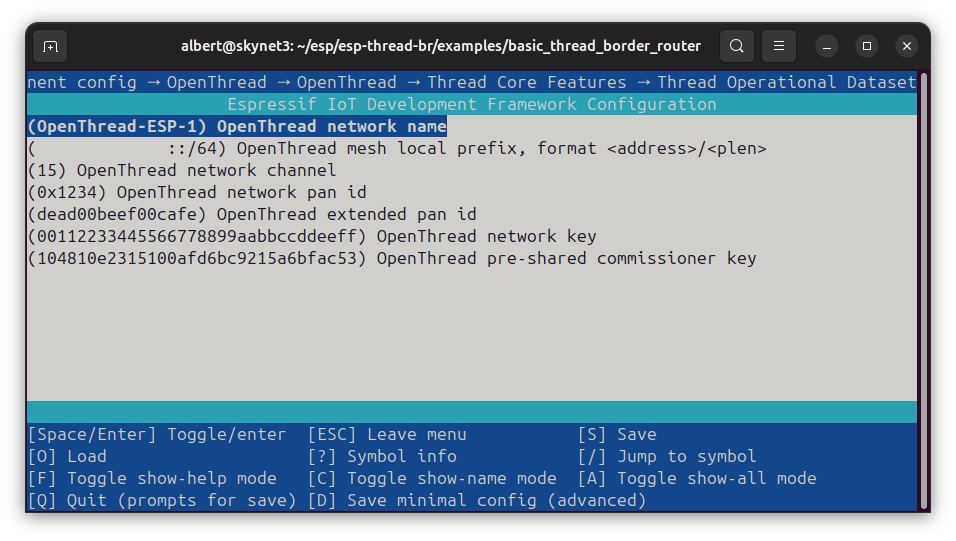
Additionally, Thread dataset can be configured:
Component config → OpenThread → Thread Core Features → Thread Operational Dataset
Step 4: Connect the ESP Thread Border Router Board
Use USB2 (ESP32-S3) on the ESP Thread Border Router Board to connect the board to the computer. Only the ESP32-S3 ( main SoC) port needs to be connected. The main SoC automatically programs the Thread co-processor.
Step 5: Build and Flash
OpenThread CLI
This section demonstrates how to use the OpenThread CLI on the ESP Thread Border Router.
OpenThread CLI is enabled in the ESP OpenThread component by default. It can also be enabled/disabled using the idf.py menuconfig command:
Component config → OpenThread → Thread Console → Enable OpenThread Command-Line Interface
The ESP Thread Border Router project extends the standard OpenThread CLI by including the OpenThread Extension Commands component with additional commands demonstrated below, such as Wi-Fi management and IP address printing.
Wi-Fi Management
Connect the ESP Thread Border Router to a Wi-Fi network:
Disconnect the ESP Thread Border Router from the Wi-Fi network:
Print the current Wi-Fi network state:
IP Addresses and Network Interfaces
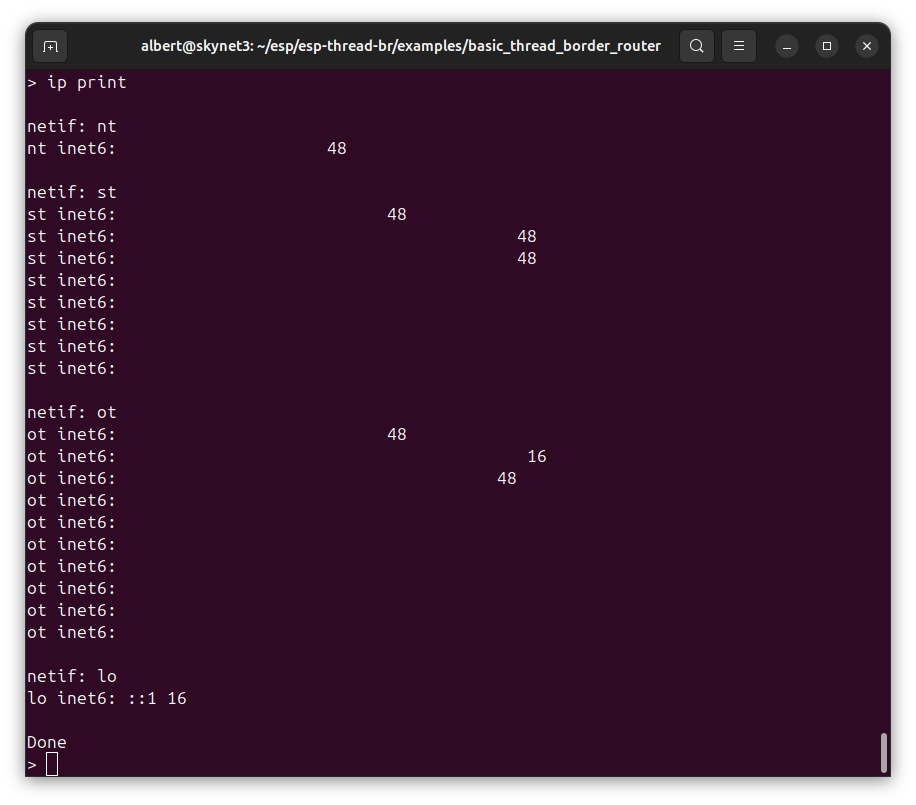
Print all the IP address on each interface of lwIP of the Thread Border Router:
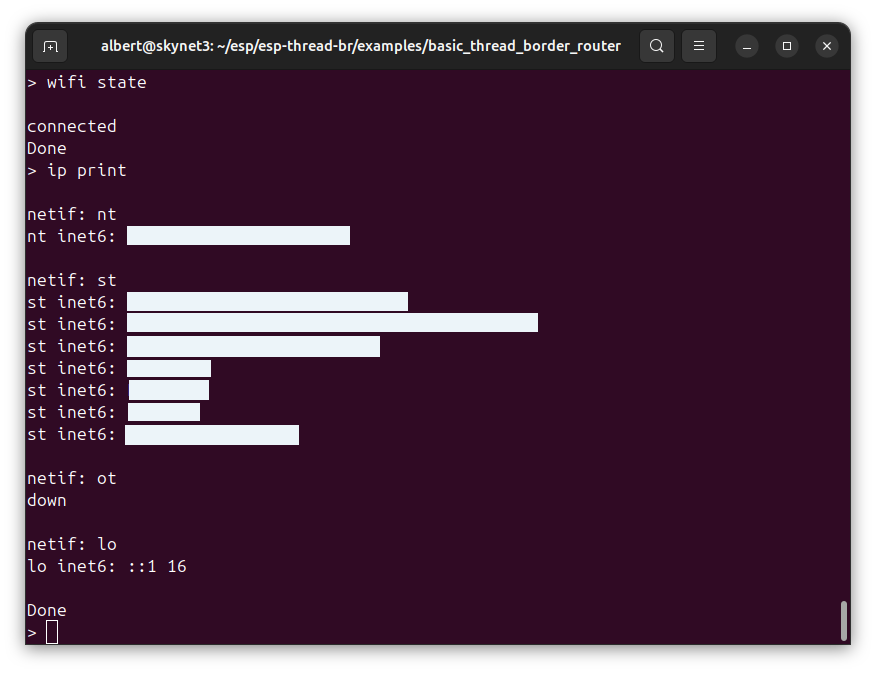
The output lists network interfaces (netif):
nt
st (Wi-Fi Station (STA) interface), this includes the Global Unicast Address (GUA), which falls within the 2000::/3 range (starts with 2xxx, 3xxx). This address is globally routable and can be used for external access if the Wi-Fi router’s firewall allows incoming connections to this address.
lo (Loopback interface).
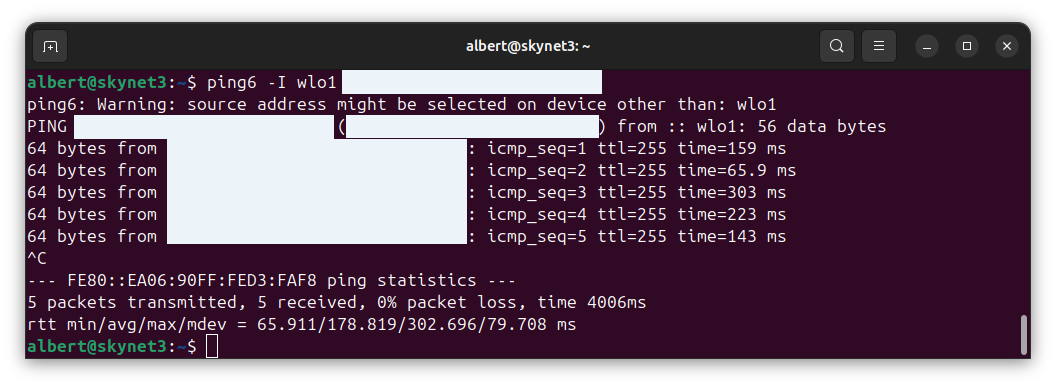
If the Thread Border Router is connected to a Wi-Fi network, we can ping it from another device. The following commands should be run on a Linux machine to find the name of the Wi-Fi network interfaces and then use it to ping the Thread Border Router:
Forming Thread network
The following commands form a Thread network:
Optional. Delete any previous settings stored on non-volatile memory, and then trigger a platform reset:
factoryresetInitialize a new dataset:
dataset init newCommit the new Operational Dataset buffer to Active Operational Dataset:
dataset commit activeEnable IPv6 communication:
ifconfig upEnable Thread interface
thread startShow the Active Operational Dataset. The optional
-xargument prints it as hex-encoded TLVs:dataset active -x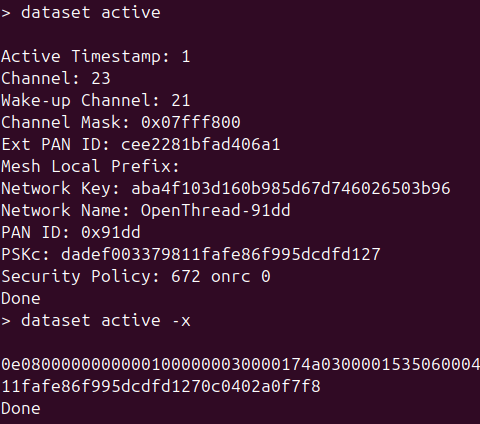
The ip print command now shows the Thread interface with the IPv6 address:
Managing Border Routing Manager
The Border Routing Manager starts automatically after enabling the Thread interface. The br command can be used to manage the Border Routing Manager.
Print the current state of Border Routing Manager:
Initializes the Border Routing Manager:
Enables the Border Routing Manager:
Information Commands
The platform command prints the current platform. The version and rcp version print the OpenThread version and the radio version respectively.
RESTful API and Web GUI
The ESP Thread Border Router provides a RESTful API and Web GUI for managing the Thread Border Router. It is disabled by default and can be enabled using idf.py menuconfig:
ESP Thread Border Router Example → Enable the web server in Thread Border Router
Web GUI Access
The Web GUI can be accessed using the IP address of the Thread Border Router:
The Web GUI can be accessed using the IPv4 address assigned by the Wi-Fi router or the device's IPv6 Global Unicast Address (see ip print in extension-commands). IPv4 is only accessible within the local network unless port forwarding is configured on the router. IPv6 can be accessed externally if a firewall rule is added on the router.
RESTful API Client Library Generation
The API is documented using the OpenAPI specification in the openapi.yaml file. OpenAPI Generator can be used to generate a client library.
The following commands should be run on a Linux machine with installed Docker and Node.js to generate a TypeScript client library for the ESP-Thread Border Router server: